Your first job is not to create a perfect graph. It is to get a repeatable baseline from the driver seat so every later change means something real.
Deep version
The page already keeps the detailed gear and software guidance. These top boxes are just the easier door into the same process.
Why Measure?
"Trust your ears" is valuable advice — but measurements reveal what listening alone cannot:
Peaks and dips in response that slowly fatigue you without your realizing
Objective proof that a change actually helped (or didn't)
Exact crossover points and phase anomalies
A baseline you can return to after experimenting
Think of measurements and listening as two complementary tools. Neither alone is sufficient.
First-session checklist
Close doors and windows.
Kill extra noise sources.
Place the mic at driver head position.
Save the graph with a useful label.
Common mistake
Do not panic at the first ugly graph. The first graph is supposed to reveal problems, not flatter the system.
First five things to notice
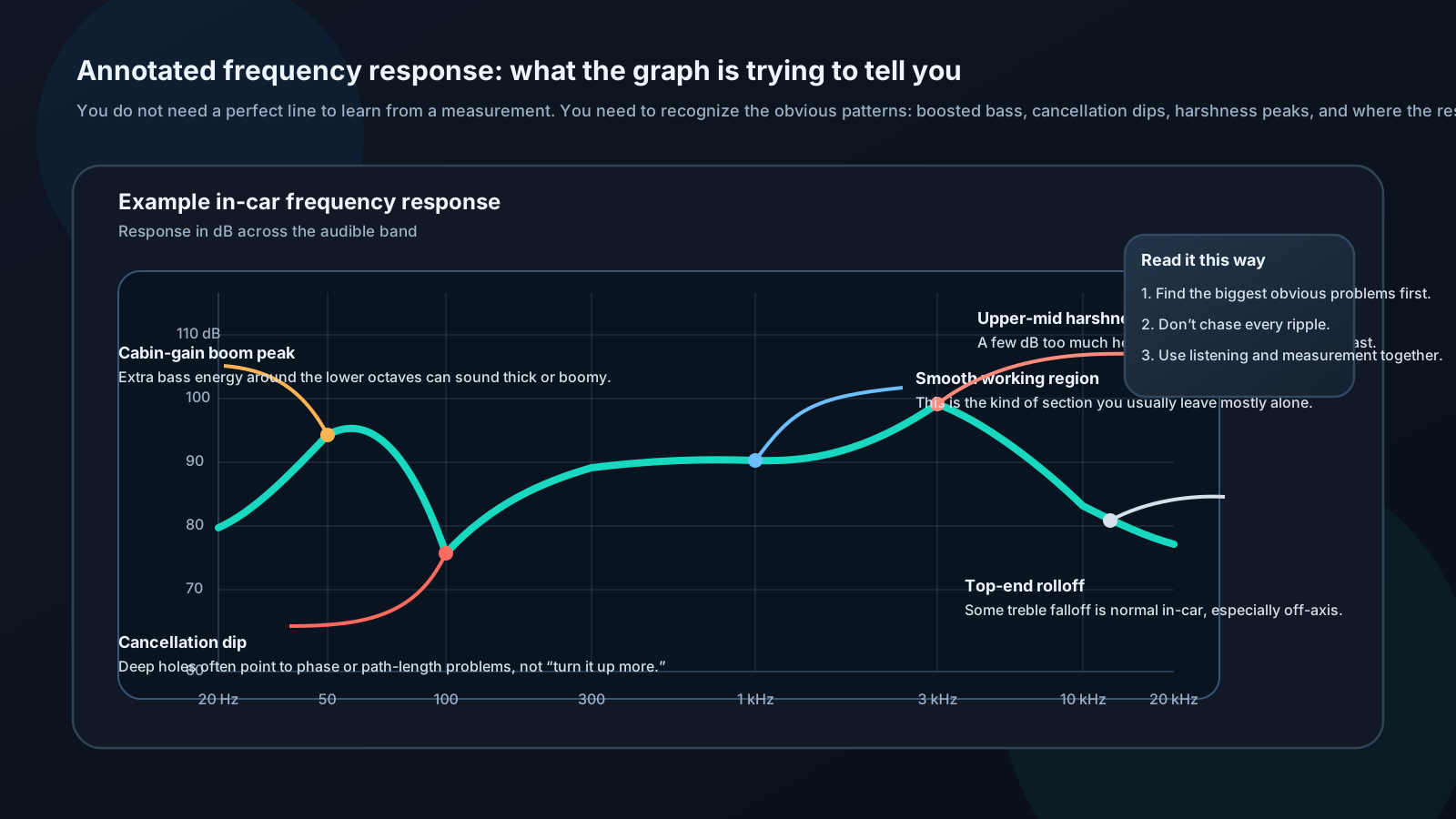
Big bass hump
Deep crossover dip
Overall left/right mismatch
Top-end drop
Anything obviously broken or clipped
Essential Equipment
Measurement Microphone
A studio microphone won't work here. You need a measurement mic: flat frequency response, omnidirectional pickup, and ideally a calibration file that corrects for its own small deviations.
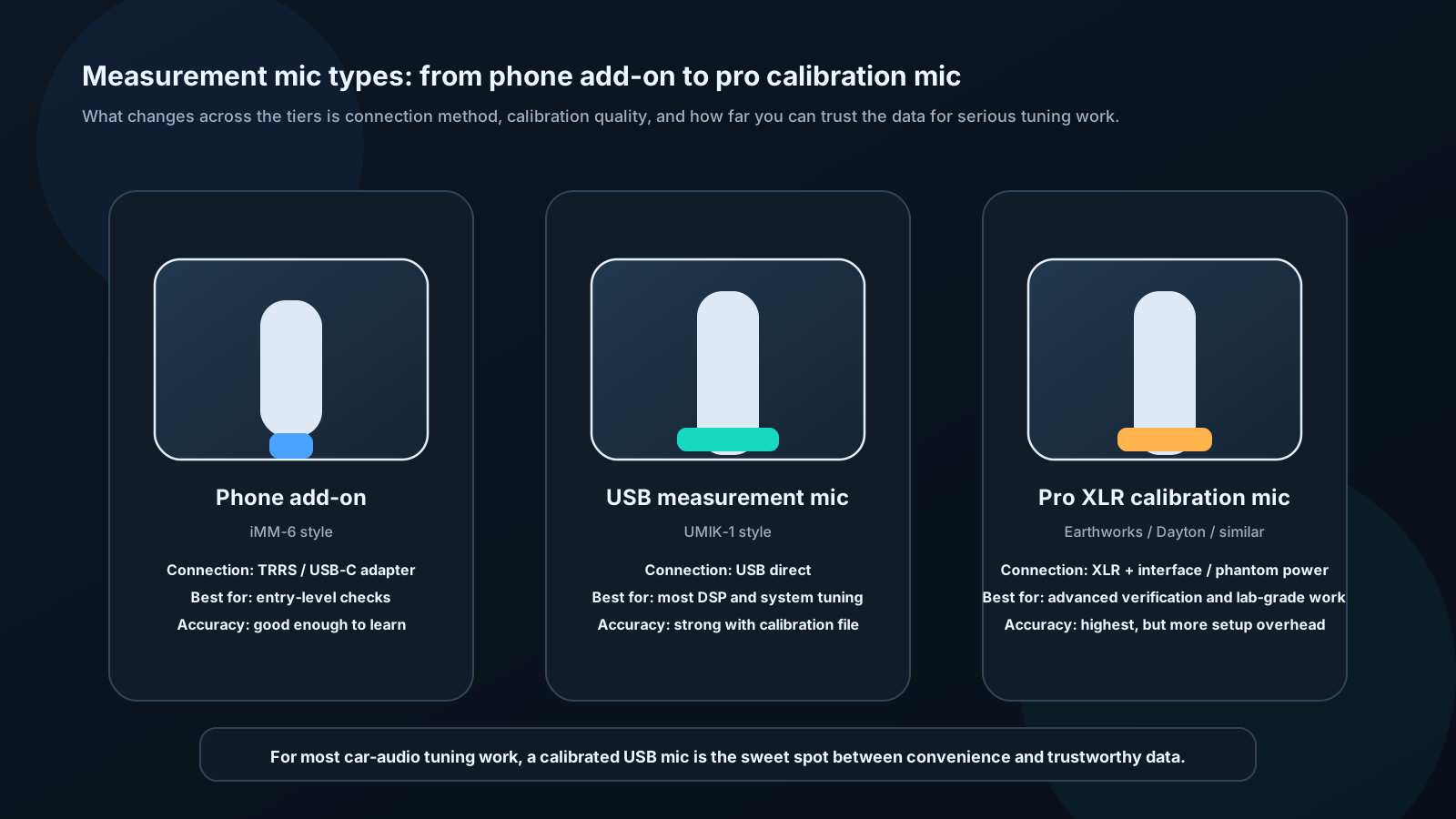
The biggest jump in practical tuning reliability usually comes from moving to a calibrated USB measurement mic. It removes phone-audio variables and gives you repeatable data with much less setup pain than a full XLR measurement chain.
Microphone
Connection
Price
Accuracy
Dayton Audio iMM-6
3.5mm / Lightning
~$20
±1 dB, adequate
miniDSP UMIK-1
USB
~$75
±0.5 dB, excellent
Behringer ECM8000
XLR
~$60
±1 dB, good
Earthworks M30
XLR
~$350
±0.2 dB, reference
For most installers: UMIK-1 is the sweet spot — USB plug-and-play, comes with individual calibration file, works directly with REW.
Software
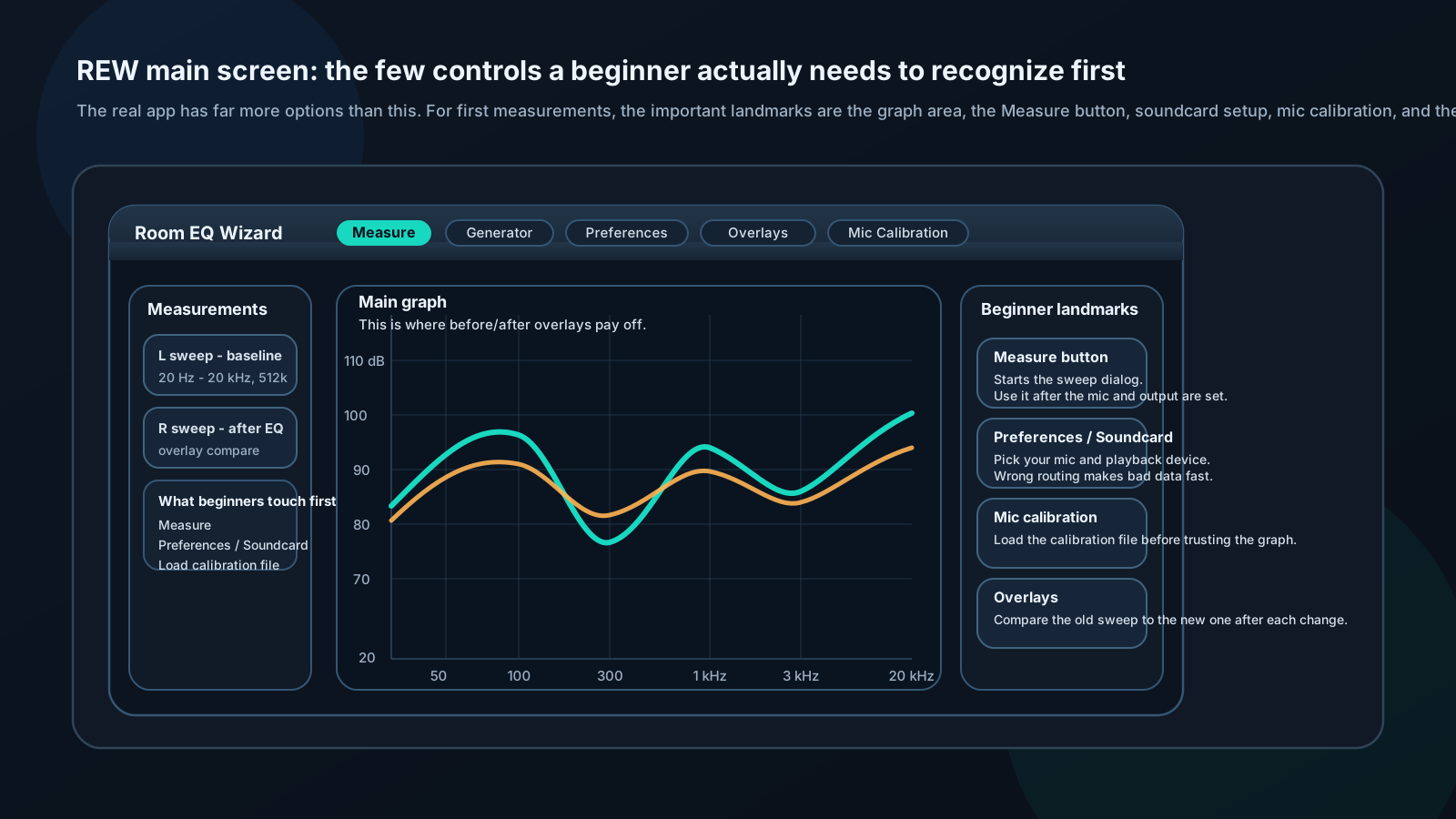
Treat REW like a measurement workstation, not a mystery box. The first things that matter are the graph, the Measure button, the soundcard routing, the mic calibration file, and the overlays that help you compare before and after changes without guessing.
REW (Room EQ Wizard) — Free, powerful, industry standard for measurement-based tuning. Download from roomeqwizard.com. Runs on Windows, Mac, Linux.
Audio Tool — iOS app, basic RTA and SPL meter. Good for quick checks without a laptop.
TrueRTA — Simple real-time analyzer, good for beginners. Free limited version available.
First Measurement: Frequency Response
Setup steps:
Close all windows and doors
Turn off engine (reduces noise floor)
Place mic at driver's head position, ear height, pointing straight up or forward per mic specs
Connect mic to computer via USB or interface
Open REW → Preferences → Soundcard → Select your mic and output device
Load mic calibration file (File → Load Calibration)
Running a sweep:
REW → Measure
Select "Swept Sine"
Level: Start at -20 dB, increase until meter shows signal without clipping
Frequency range: 20 Hz – 20,000 Hz
Length: 512k (more accuracy, slower)
Click Start — the system plays a sweep from low to high, records it, and calculates response
Reading results:
You are not hunting for a perfectly flat line at this stage. You are learning to spot the obvious shapes first: extra bass energy, cancellation holes, harshness peaks, and the parts of the curve that are already behaving normally.