5.5 Steering Wheel Controls and CAN Bus Interface
🔰 BEGINNER LEVEL: Why Steering Wheel Controls Matter
The Problem
You install a new head unit. Your steering wheel has audio controls — volume up/down, source/skip, answer phone. The factory head unit understood these buttons. Your new aftermarket head unit does not.
Two options: Give up steering wheel controls (bad for safety and daily convenience) or add a steering wheel control interface module.
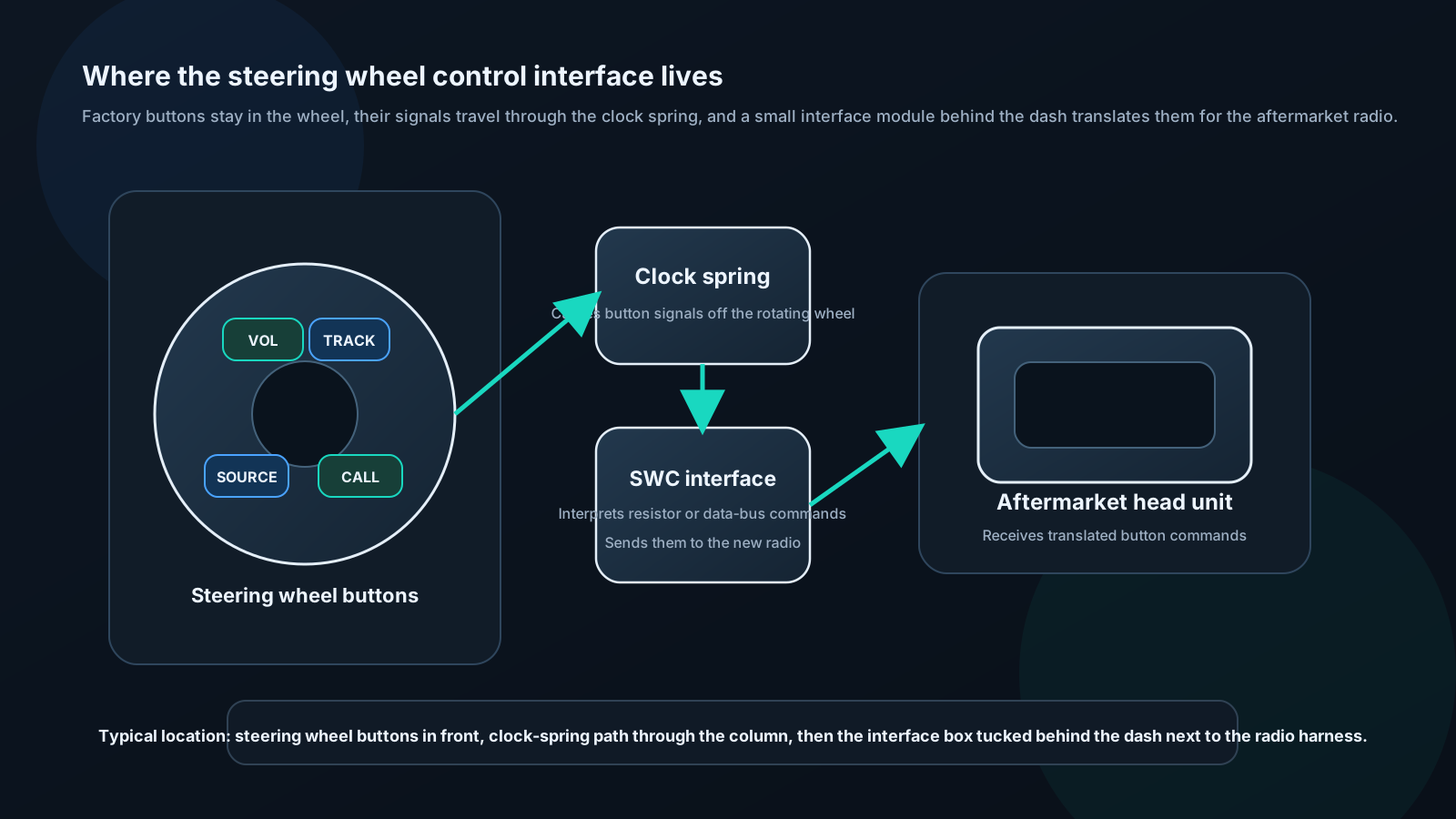
How Factory Steering Wheel Controls Work
Resistor-based systems (most common):
The steering wheel contains a resistor ladder network. Each button connects a different resistor value to ground through the clock spring.
The head unit reads voltage on a single wire: - No button: 5V (full voltage) - Volume up: 4.2V (small resistor to ground) - Volume down: 3.8V - Track skip: 3.0V - Source: 2.4V - Answer/end call: 1.8V - etc.
Interface module reads these voltages and translates to aftermarket head unit commands.
CAN Bus-based systems (modern vehicles):
Newer vehicles transmit SWC commands digitally on the CAN Bus network. The steering wheel doesn't directly create an analog voltage — it sends a data message.
The interface module reads CAN Bus and translates digital messages to the analog format the aftermarket head unit expects.
Selecting and Installing an Interface
Brands:
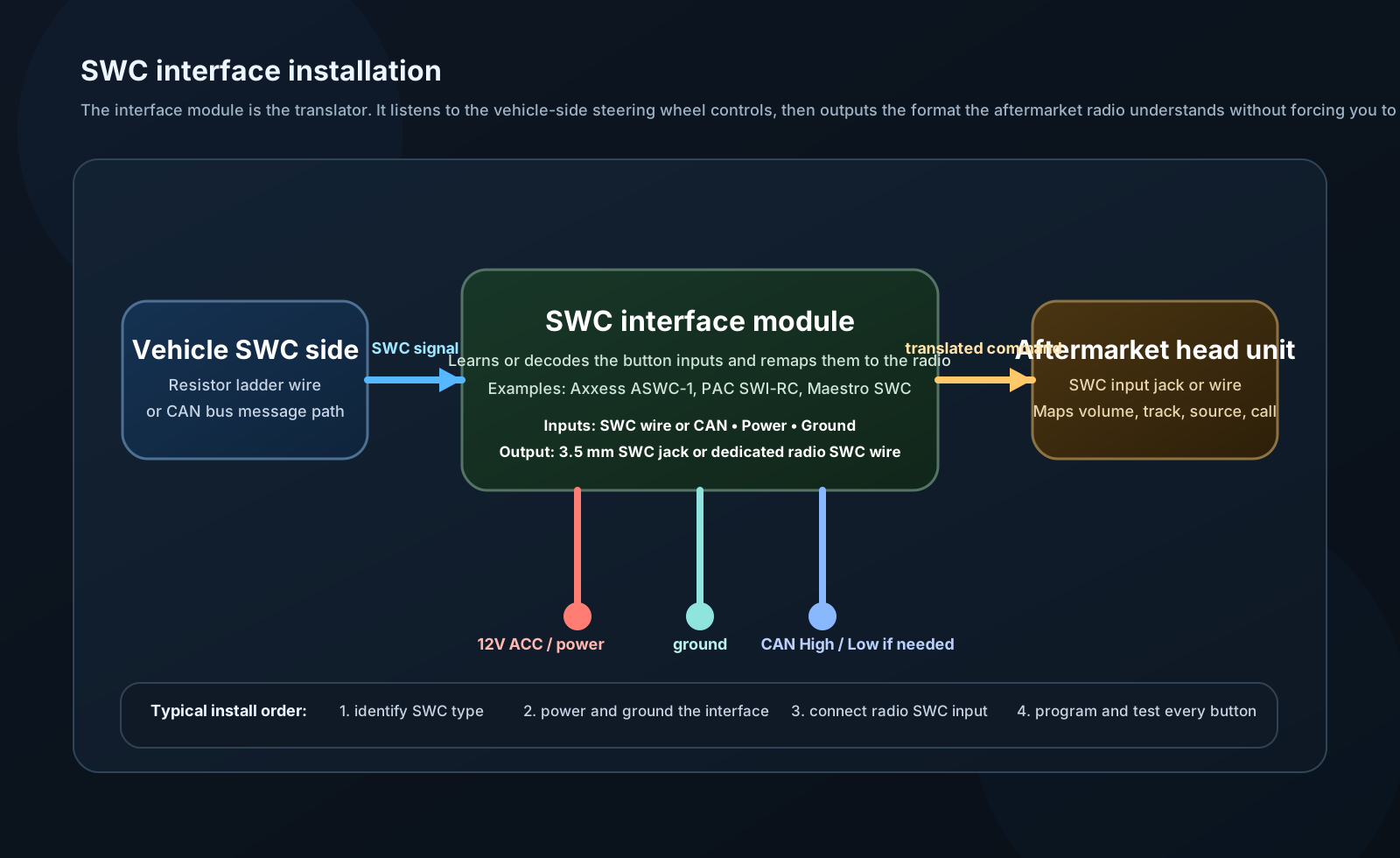
- Axxess ASWC-1: Universal learning adapter. Learns vehicle's SWC signals and outputs to head unit. Works with both resistor and many CAN-based systems. $50.
- PAC SWI-RC: Programmable, vehicle-specific. $40.
- iDatalink Maestro SWC: Part of broader Maestro integration ecosystem. $50–100.
- iSimple IS31: Budget option, basic functionality. $20.
Installation:
- Connect vehicle SWC wire (usually a dedicated color, check vehicle wiring diagram)
- Connect power and ground to module
- Connect output wire to head unit SWC input (3.5mm jack or dedicated wire)
- Program module: Press each SWC button in sequence while module stores
- Test all buttons
Programming ASWC-1:
- Connect all wires
- Key on, head unit on
- Module enters learn mode (LED indicator)
- Press each steering wheel button in sequence (5–10 seconds each)
- Module maps each to head unit command
- Done
🔧 INSTALLER LEVEL: OBD and CAN Bus Advanced Integration
CAN Bus Overview
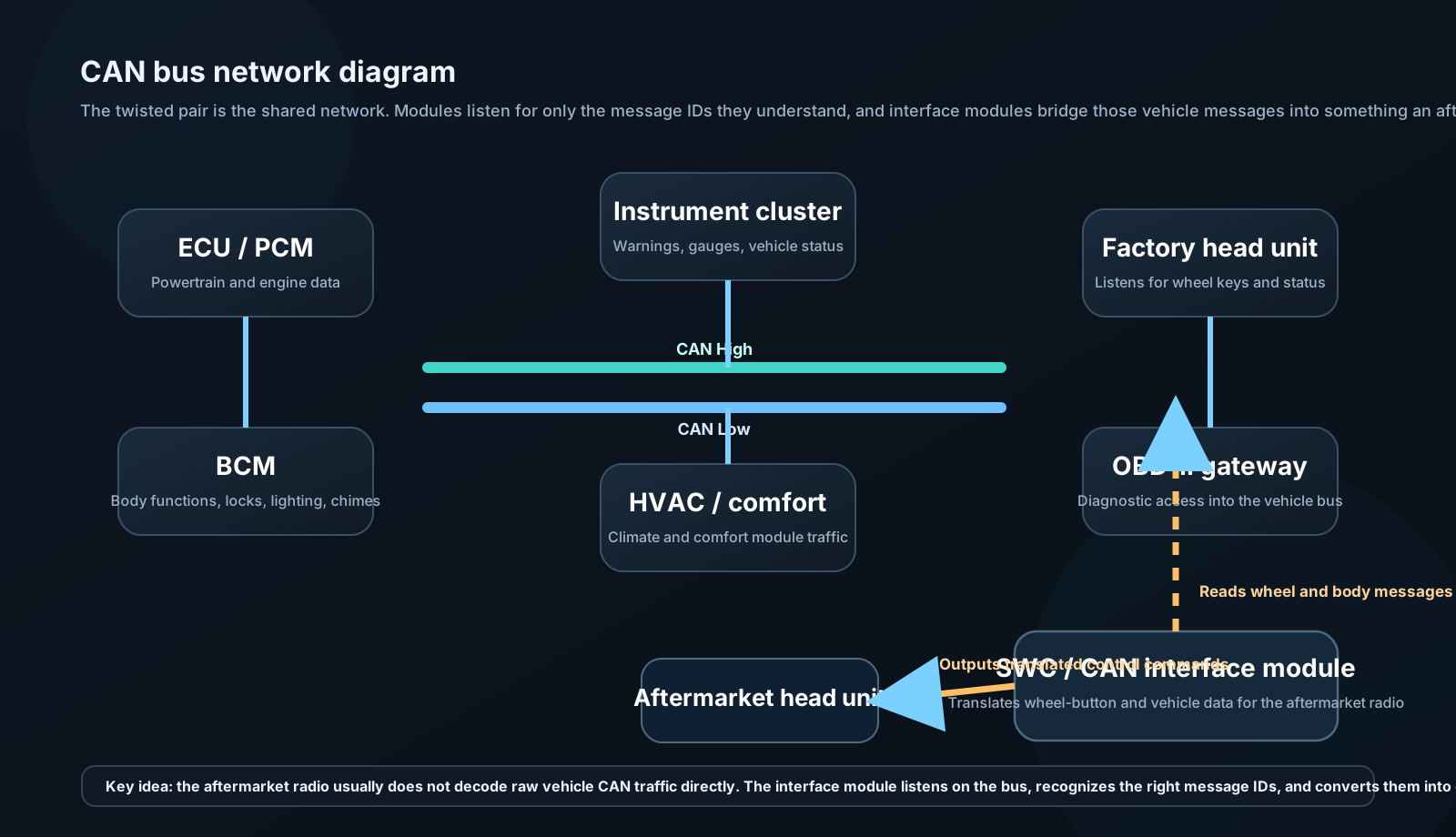
CAN (Controller Area Network): Vehicle communications standard developed by Bosch in 1983. Used in virtually all modern vehicles for ECU communication.
Physical layer:
- Two wires: CAN High (CANH) and CAN Low (CANL)
- Twisted pair (120Ω characteristic impedance)
- Differential signaling: Signal = CANH − CANL
- Recessive bit: Both at 2.5V (difference = 0V)
- Dominant bit: CANH = 3.5V, CANL = 1.5V (difference = 2V)
Data rate:
- Low-speed CAN: 125 kbps (comfort/body functions)
- High-speed CAN: 500 kbps (powertrain, chassis)
- CAN FD: Up to 5 Mbps (newer vehicles)
Message format:
| SOF | Identifier (11-bit) | RTR | DLC | Data (0-8 bytes) | CRC | ACK | EOF |
Each message has an 11-bit (or 29-bit extended) identifier indicating what data it contains (e.g., 0x153 might be "steering wheel button states").
Why this matters for audio:
When you press volume up on the steering wheel in a modern vehicle, a CAN message is generated (e.g., "SWC Volume Up" with ID 0x153, Data 0x01). The factory head unit listens for this message and acts. An aftermarket head unit doesn't know this protocol — it needs an interface module.
Reading and Using CAN Bus Data
iDatalink Maestro RR / RR2:
The most capable consumer integration platform. Vehicle-specific programming for hundreds of makes/models.
What Maestro can do:
- Retain factory steering wheel controls
- Retain factory backup camera
- Display vehicle data on head unit screen: speed, RPM, coolant temp, tire pressure, door ajar warnings, parking brake status
- Send commands to vehicle: climate control, seat heaters (on compatible vehicles)
- Plug-and-play harness for supported vehicles
Maestro installation:
- Connect Maestro module between factory wiring and aftermarket head unit
- Maestro communicates with vehicle CAN Bus
- Head unit connects to Maestro via HDMI/USB diagnostic link
- Vehicle data appears on head unit display
- Factory features retained
Supported head unit brands: Pioneer, Kenwood, Alpine, Sony, JVC — each brand requires specific Maestro "Dash Cam" compatible model.
OBD-II Integration
OBD-II (On-Board Diagnostics, second generation): Standardized diagnostic port in all US vehicles since 1996 (16-pin connector, typically under dashboard left of steering column).
OBD-II provides access to:
- Engine fault codes (DTCs — Diagnostic Trouble Codes)
- Real-time sensor data: RPM, coolant temp, O2 sensors, MAF, throttle position, fuel trim
- Calculated parameters: Horsepower, torque (estimated), MPG (real-time and average)
Audio integration via OBD:
Wireless OBD adapters (Bluetooth, Wi-Fi) send vehicle data to smartphone apps. Apps overlay data on CarPlay/Android Auto or display independently.
Products:
- OBDLink MX+: Best in class. $100. Bluetooth/Wi-Fi. Works with all OBD apps.
- Veepeak Mini: Budget option. $20. Works with Torque Pro, OBD Fusion.
- BlueDriver: Integrated app and adapter. $120. Good for diagnosis.
Head unit with OBD display:
Some head units (Pioneer, Kenwood with smart accessory) connect directly to OBD adapter via Bluetooth and display RPM/speed gauges on the head unit screen. A compelling cosmetic feature; the data itself is real and accurate.
⚙️ ENGINEER LEVEL: CAN Bus Protocol Deep Dive
CAN Frame Structure and Arbitration
Frame types:
| Frame Type | Use |
|---|---|
| Data frame | Transmit data to other nodes |
| Remote frame | Request data from another node |
| Error frame | Signal detected error |
| Overload frame | Request additional delay between frames |
Arbitration:
CAN is a multi-master bus — any node can transmit when bus is idle. Collision avoidance uses bit-wise arbitration:
- All nodes wanting to transmit begin simultaneously
- Each node sends its identifier bits while monitoring the bus
- When a node sends a recessive bit but sees a dominant bit, it loses and stops transmitting
- The node with the lowest identifier wins (dominant wins)
This is lossless arbitration — the winning message is already being transmitted by the time others back off.
Priority: Lower identifier = higher priority. Safety-critical messages (ABS, airbag) have lower identifiers.
CAN Bus Sniffing for Integration
How to reverse-engineer vehicle CAN Bus:
Hardware needed: - USB-CAN adapter (KVASER, Peak, or cheap Chinese clone at ~$20) - Laptop with CAN analysis software (CANalyzer, Wireshark with CANFD plugin, or free SavvyCAN)
Process:
- Connect CAN adapter to vehicle OBD-II port (both CAN-H and CAN-L accessible)
- Key to accessory mode
- Record all CAN traffic (baseline capture, ~30 seconds)
- Perform an action (press steering wheel volume up)
- Record again
- Compare before/after captures — new or changed messages are candidates
Analysis:
For a message appearing only when button pressed:
ID: 0x21E (543 decimal)
Data: 01 00 00 00 00 00 00 00
And disappearing when released:
ID: 0x21E
Data: 00 00 00 00 00 00 00 00
This is almost certainly the Volume Up command.
Verification:
Write a simple CAN message generator (Python with python-can library) to inject this message while monitoring whether the factory head unit responds. If volume increases: confirmed.
Building a custom interface:
Arduino with MCP2515 CAN controller ($10 total): 1. Read target CAN messages 2. Map to head unit commands 3. Output via appropriate protocol (analog voltage, I²C, or head unit-specific protocol)
This is how iDatalink Maestro and similar products were developed — vehicle-specific CAN databases built through systematic reverse engineering.